Animate your next trip
Turn a travel itinerary into a 3D map video
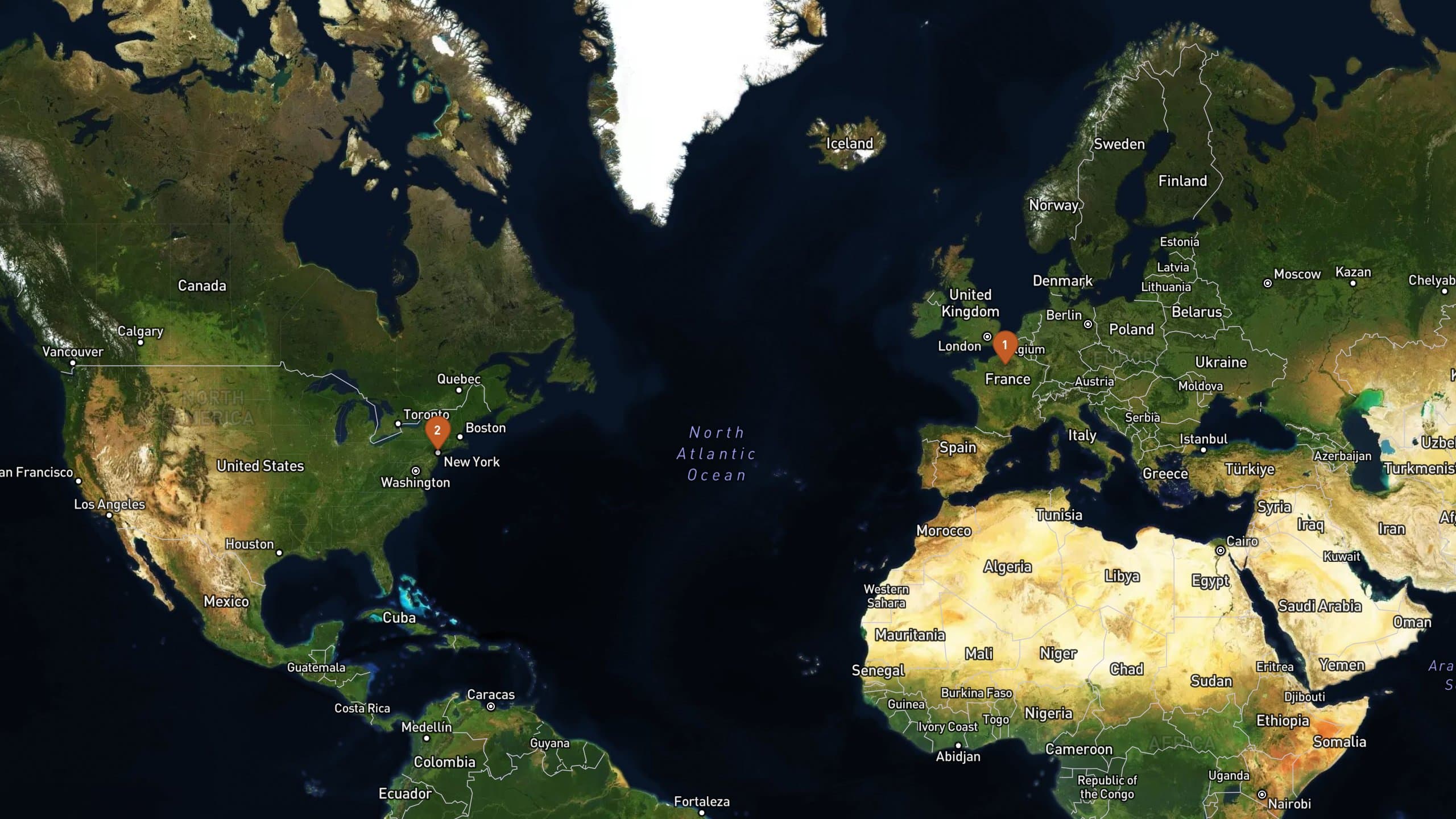
Show where you went — not just the destination stills. Build a flight from city stops on a globe, or drop a road-trip GPX, then export a cinematic map MP4 for YouTube 16:9 or Reels 9:16. Preview a Paris → New York hop before you bring your own itinerary. Unlike a static screenshot, you keep a moving file.
How it works
- 1
Choose how the trip is defined
Place ordered city stops for a flight or multi-city overview (no GPX required), or export a recorded road / train day as .gpx from Strava, Garmin, or Apple Watch.
- 2
Compose the journey in Studio
For stops, use a flight path and globe framing so oceans and continents read. For a GPX day, follow the recorded line over 3D terrain like any outdoor track.
- 3
Set aspect ratio for the cut
Pick 16:9 for a vlog chapter or travel film, or 9:16 for a Shorts / Reels map beat between talking heads and B-roll.
- 4
Export the MP4
Render a downloadable map sequence. Free exports are short watermarked clips; Plus and Pro unlock clean higher resolutions.
Stops and flights versus a day on the road
Travel stories are rarely one trail loop. Continent hops need city points and a curved flight path. A coastal drive needs the GPS scribble from the car. Pick the route source that matches the beat you are cutting.
- From stops — ordered places (Paris, New York, …) for A→B flights and multi-city overviews without a GPX file.
- From GPX — recorded road trips, rail days, and mixed travel days from a watch or phone.
- Plane framing — higher, calmer camera and globe when the story crosses an ocean.
- Ground framing — follow the asphalt or rails when the day stays on the surface.
Two trips, two frames
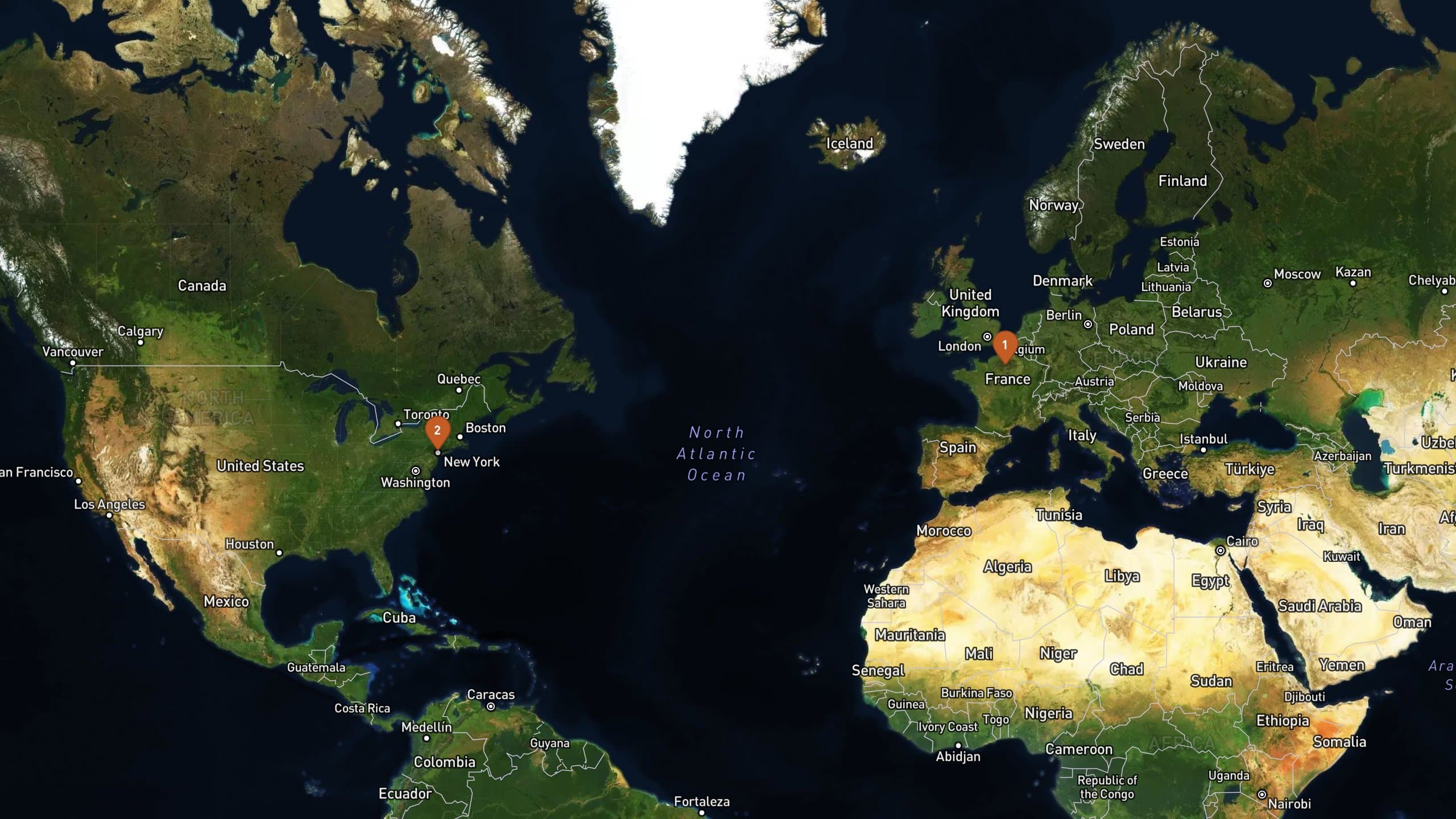
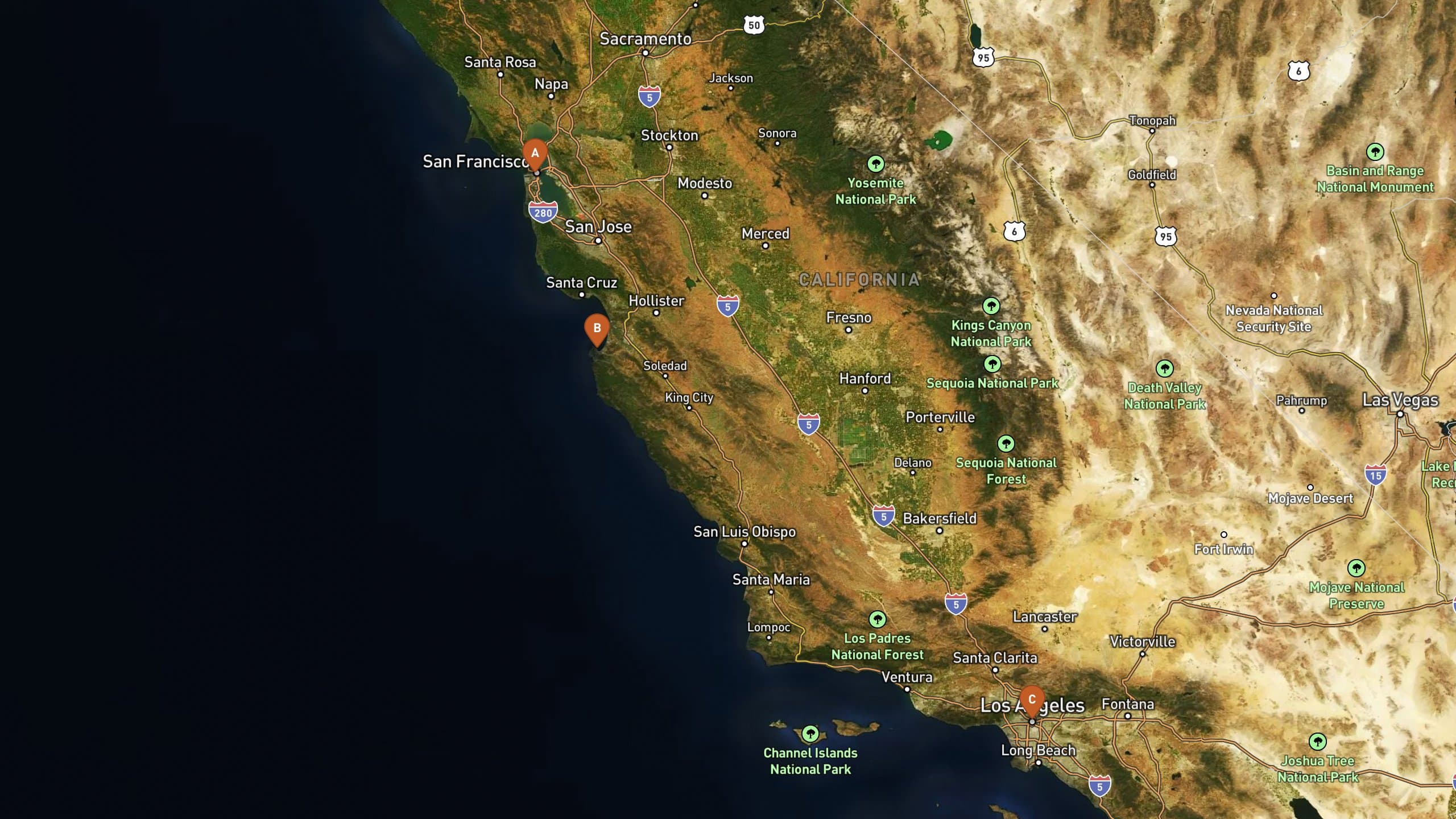
These frames are travel-scale, not trail-scale. One is a flight arc between cities; the other is a multi-stop coastal road day.
Get the route before you animate
Flights and simple A→B: open Studio with From stops, add cities in order, choose airplane, and preview on the globe.
Recorded travel days: export GPX from Strava, Garmin Connect, or Apple Watch, then upload. Planning a drive before you go? Build it in Mapy.com (or similar), export GPX, and animate the same file.
YouTube chapter versus a Reel hook
Travel edits usually need both a landscape map chapter and a vertical tease. Vianim renders the map; music, VO, and titles stay in your editor.
- 16:9 — “here is the journey” chapter in a travel vlog or documentary cut.
- 9:16 — arrival hook or city-to-city tease for Reels, Shorts, and TikTok.
Ready to animate the journey, not just the postcard? Start free, or preview a Paris → New York flight on the globe.
FAQ
- Do I need a GPX file for a flight map video?
- No. Use From stops: add cities (for example Paris and New York), choose airplane, and preview a flight path on the globe. Export an MP4 the same way as a GPX project.
- Can I animate a road trip from a watch?
- Yes. Export GPX from Strava, Garmin Connect, or Apple Watch for the driving day, upload it, and follow the recorded line over 3D terrain.
- What is the difference between this page and the travel map animator page?
- The travel map animator page introduces the product keyword. This use-case page goes deeper on itineraries: stops for flights, GPX for road days, and framing tips for travel edits.
- Is the flyover a downloadable MP4?
- Yes. You get a video file for your timeline or social post — not only an in-app preview.
- Should I use 16:9 or 9:16 for travel?
- Use 16:9 for YouTube chapters and long-form. Use 9:16 for Shorts and Reels. You can export both from the same trip.
- Is the free plan watermarked?
- Free exports are short watermarked clips so you can try the pipeline. Plus and Pro unlock clean exports at higher resolution and longer durations.