Animate your next hike
Turn a hike GPX into a 3D route video
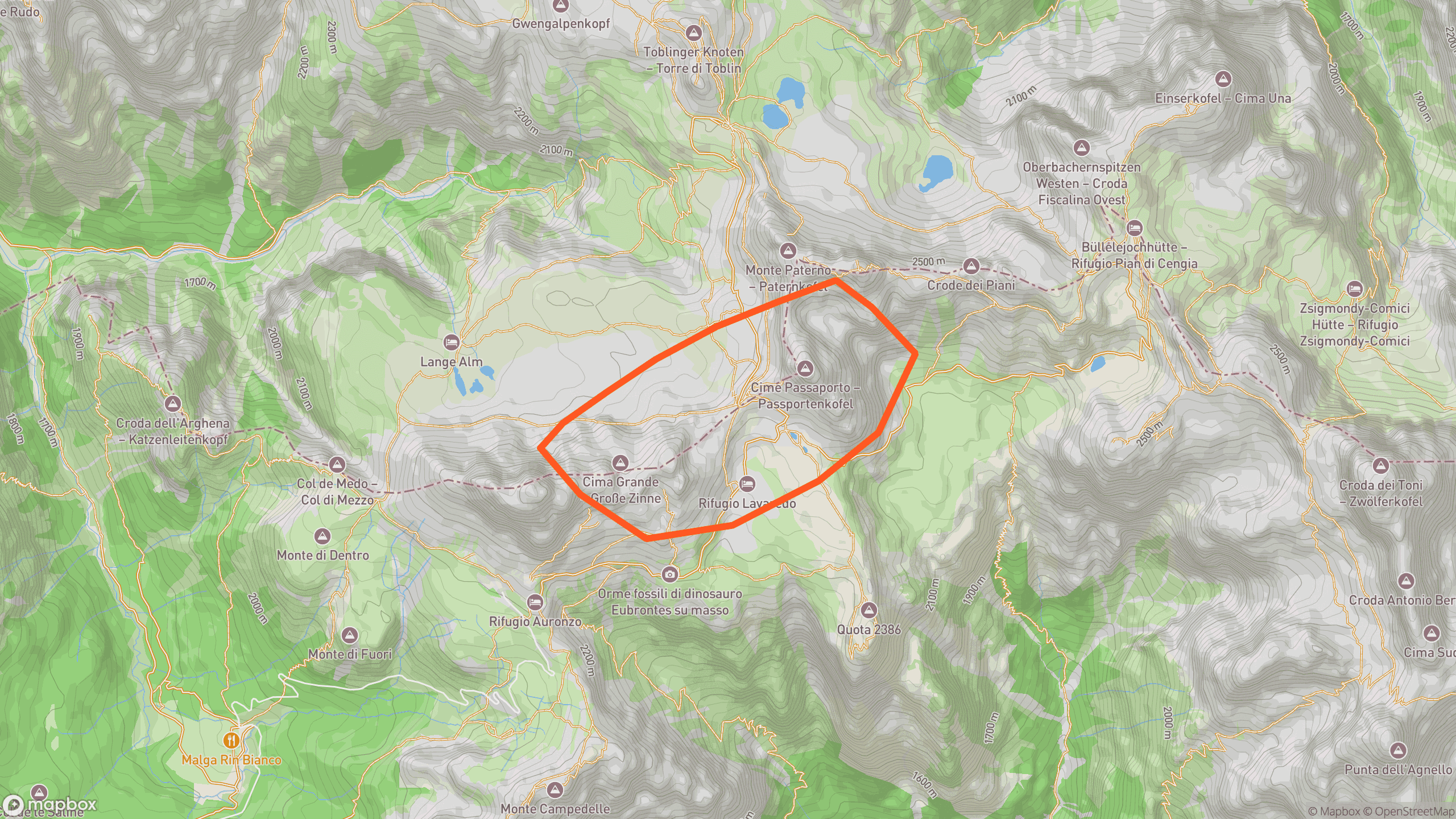
Turn a hike GPX into a cinematic 3D map video you can download as MP4 — for YouTube 16:9 or Reels 9:16. Use a track recorded on Garmin, Strava, or Apple Watch, or plan the route in Mapy.com (formerly Mapy.cz), export GPX, and upload the same way. Preview the Tre Cime di Lavaredo loop in the Dolomites before you bring your own file. Unlike an in-app flyover, you keep the video.
How it works
- 1
Get a GPX of the hike
Export a recorded track from the Strava website, Garmin Connect, or Apple Watch — or plan the trail in Mapy.com (or a similar planner), export GPX, and use that file. A standard .gpx is what the studio reads.
- 2
Drop it into the studio
Upload in the browser. Vianim parses the track client-side and drapes it on Mapbox 3D terrain so you see real elevation before you render.
- 3
Set camera and aspect ratio
Choose 16:9 for a YouTube chapter or 9:16 for a Reel. Adjust how the camera follows the line so climbs and ridgelines read clearly.
- 4
Export the MP4
Queue a cloud render and download the finished hike video. Free exports are short watermarked clips; Plus and Pro unlock clean higher resolutions.
What makes a hike video look like a film
A flat activity share flattens the mountain. A cinematic hike video uses the terrain mesh and camera timing so elevation is part of the story — not just a colored line on a 2D map.
- Follow the recorded line over real terrain instead of a static overview.
- Use pitch that opens the valley so steep sections feel vertical.
- Slow the camera on the steepest climbs and descents so elevation reads.
- Open wide on the ridge or rim, then tighten as the trail weaves.
Two hikes, two frames
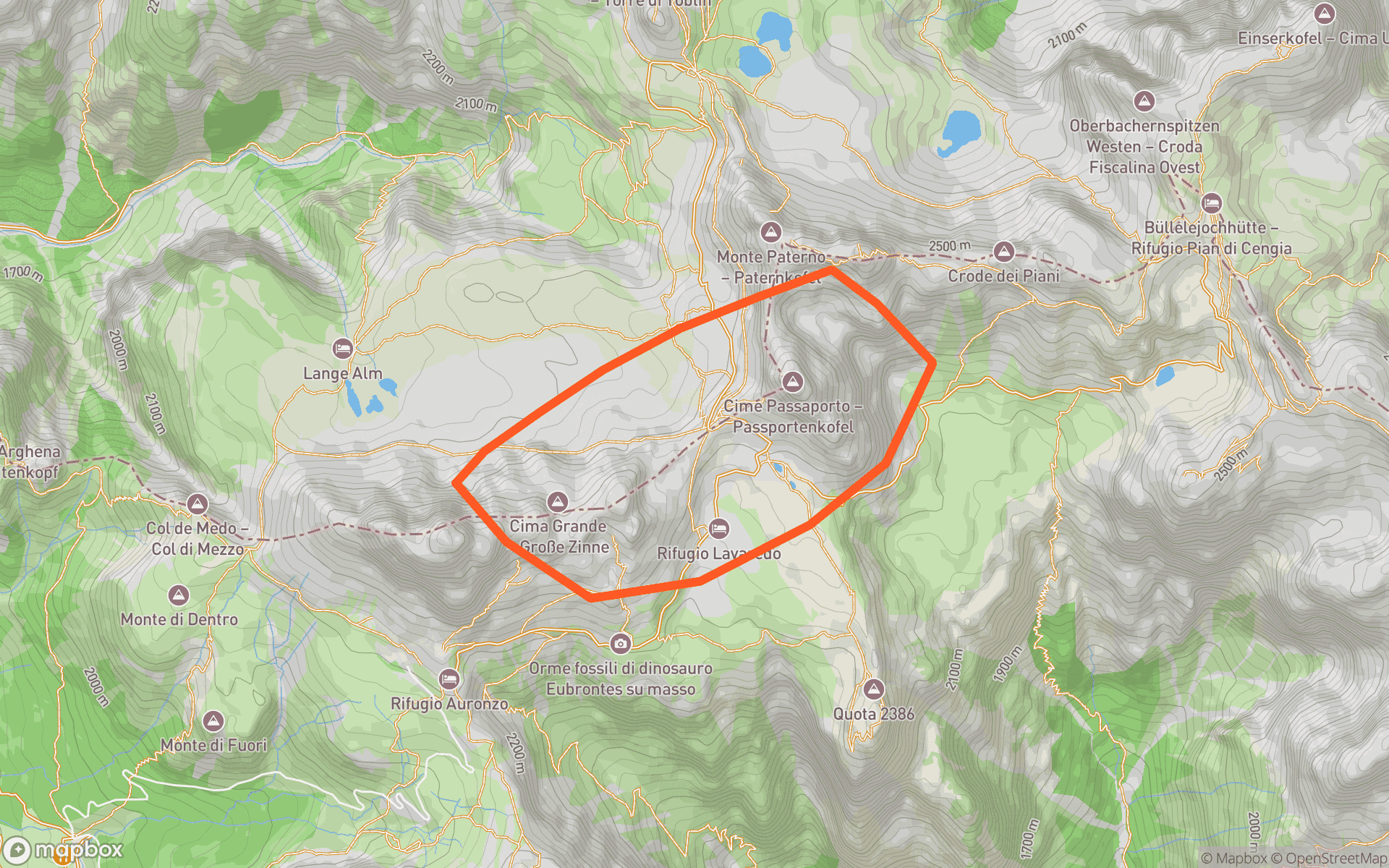
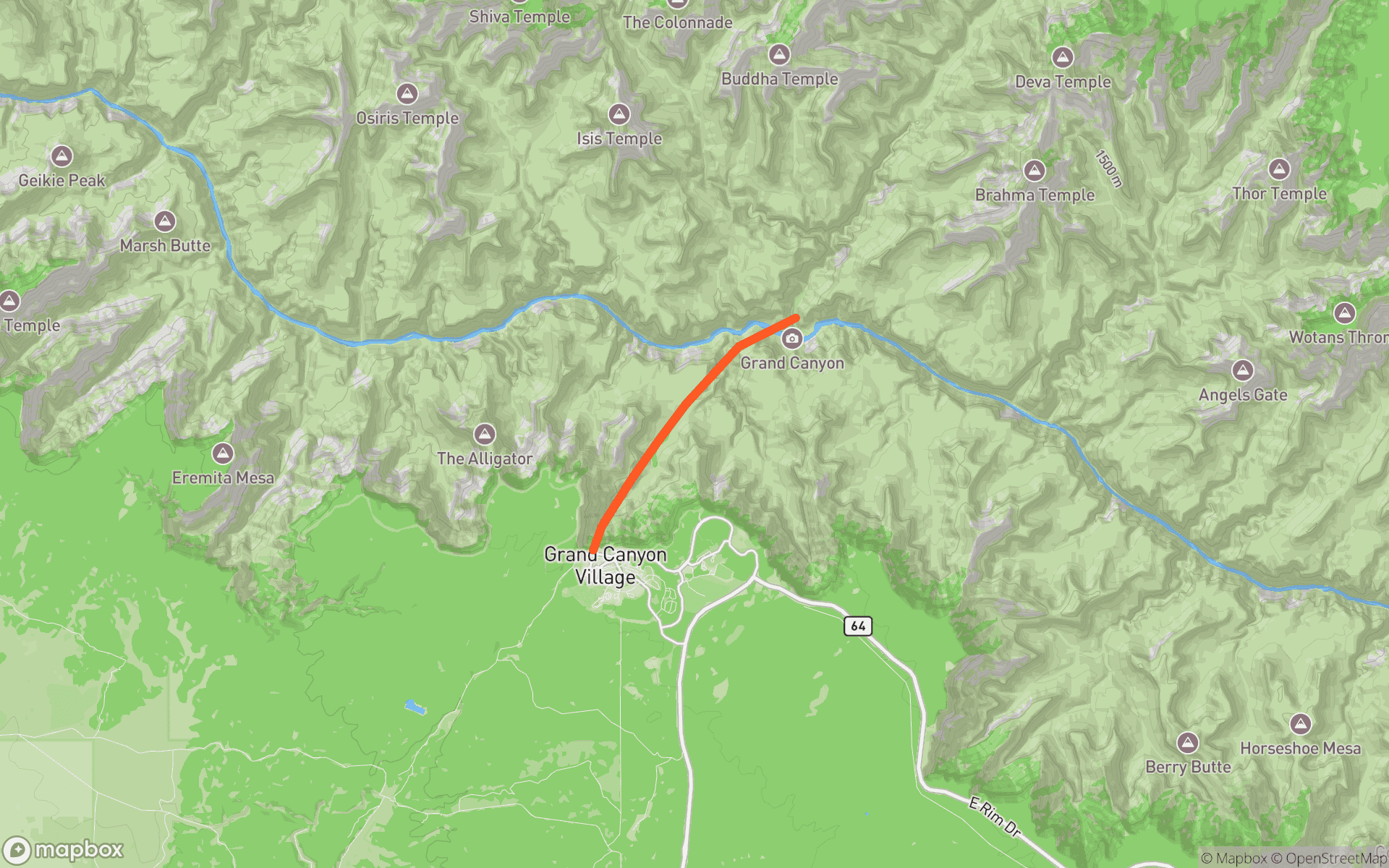
Named places help you judge what the camera will show. These two sample frames are alpine loop versus canyon descent — both depend on elevation reading on screen.
Export the GPX before you animate
Vianim starts from a .gpx track — recorded or planned. Export from your watch or phone, or draw the route in a planner first, then upload the file.
Planning ahead: in Mapy.com — formerly Mapy.cz — and similar outdoor planners, build the hiking itinerary, export GPX, and drop that same file into the studio. Useful when you want a preview video before the trip, or a clean line without GPS noise from the day.
Privacy tip: if a recorded hike starts at home, crop the driveway before export — privacy zones on a fitness map usually do not rewrite the GPX file.
YouTube versus a Reel
Pick the frame that matches where the clip will live. Vianim renders the map sequence; music, voiceover, and titles stay in your editor.
- 16:9 — route story as a chapter in a hike vlog or long-form YouTube cut.
- 9:16 — summit hook or trail teaser for Reels, Shorts, and TikTok.
Ready to animate a recorded hike or a route you planned? Start free, or preview the Tre Cime sample to learn the camera first.
FAQ
- Can I animate a Strava hike?
- Yes. Export GPX from the Strava website activity page, upload it in Vianim, preview the 3D trail, and export an MP4. The phone app does not offer Export GPX.
- Can I use a planned route from Mapy.com?
- Yes. Plan the hike in Mapy.com (formerly Mapy.cz) or another planner that exports GPX, download the .gpx, and upload it in Vianim the same way you would a recorded track. Any standard GPX trail works.
- Is the flyover a downloadable MP4?
- Yes. Vianim renders an MP4 you can save and edit. That differs from in-app flyovers that only play inside another product.
- Does elevation show in 3D?
- Yes. The route is draped on Mapbox 3D terrain so climbs, ridgelines, and canyon walls read during preview and in the exported video.
- What if the track starts at home?
- Crop the start in your fitness app before exporting GPX, or trim the finished video in your editor. Privacy zones that hide your house on a map often do not change the exported file.
- Should I use 16:9 or 9:16?
- Use 16:9 for YouTube chapters and landscape edits. Use 9:16 for Reels, Shorts, and vertical social. You can choose either before you export.
- Is the free plan watermarked?
- Free exports are short watermarked clips so you can try the pipeline. Plus and Pro unlock clean exports at higher resolution and longer durations.